Current product
Video & audio
Explore productRust-Translate
A workspace for downloads, profile collection, series management, AI dubbing, batch processing and social publishing.
ECOTOOLS / A TOOL ECOSYSTEM
ecotools is an ecosystem of tools for creating, managing content and automating work. Explore Rust-Translate, our available tool for video management, production and publishing, alongside the next directions for the ecosystem.
Rust-Translate is available for Windows x64
 Explore Rust-Translate
EXPLORE THE ECOSYSTEM
Rust-Translate is the available ecotools product. The AI and social media categories below represent future directions, rather than standalone products that have shipped.
A workspace for downloads, profile collection, series management, AI dubbing, batch processing and social publishing.
Tools to bring AI into your everyday creative work.
Tools to support content workflows across social media platforms.
Future tool categories reflect our direction. No release dates have been announced.
AVAILABLE TOOL / RUST-TRANSLATE
A Windows application for creators and channel managers: organize video sources, translate and dub with AI, process episodes in batches, then publish to YouTube or Facebook.
Keep videos from multiple channels in one place so you can find the right episode, choose content and track work already done.
Adapt content to your audience’s language, review dialogue and keep subtitles and branding consistent across episodes.
Send finished videos to the right channel, prepare post content and track each upload from the app.
Select videos and shared settings. The app processes them in sequence from download to export; track progress, pause or rerun when needed.
THE RUST-TRANSLATE WORKFLOW
Start with a local file or an online source. Choose the stages you need to create a finished video and send it to your channel.
Import files, download videos or collect lists from supported channels. Group them by topic and series to choose the episodes to work on.
RESULTOrganized video sources, ready to process.Transcribe dialogue, review the AI translation and edit individual lines. Choose a voice, listen and dub content that needs a new language.
RESULTReviewed dialogue and voice tracks.Position subtitles, titles, logos and watermarks. Choose framing, audio and export settings; combine episodes when you need a longer video.
RESULTA video file prepared for its destination.Choose a YouTube channel or Facebook Page. Prepare post content, upload the video and review publishing status and history.
RESULTPosts and publishing history managed in the app.You can use the tools independently. A finished video can go straight to editing or publishing; translation and dubbing are options when your content needs a new language.
EXPLORE THE REAL APPLICATION
From collecting sources to publishing: choose the work you need to do and see how Rust-Translate helps you organize content, reduce repetitive work and track each video.
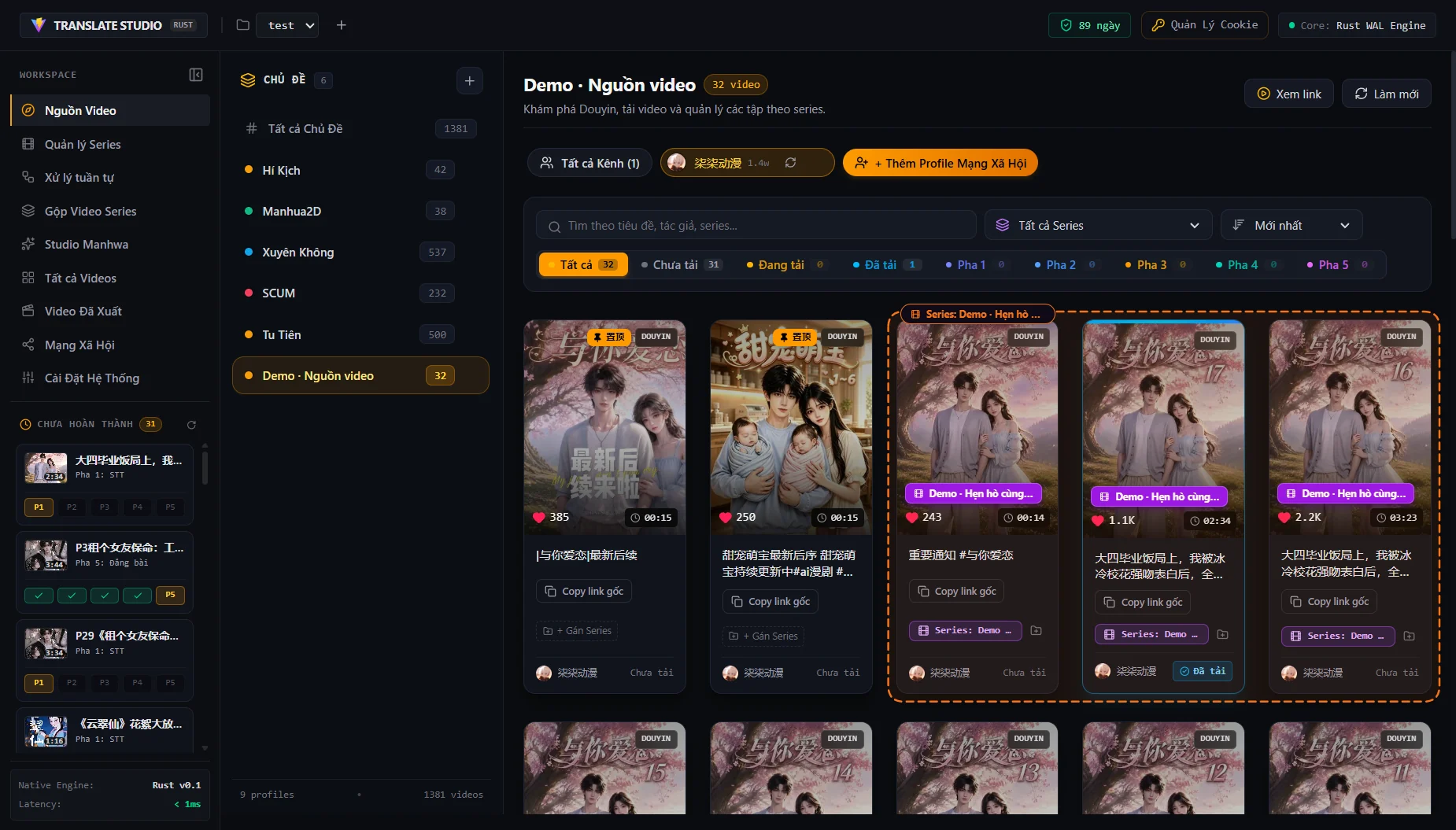
Following multiple channels can leave you with hundreds of scattered links and episodes that are hard to find again. Collect video lists from Douyin, YouTube or Bilibili channels, organize them by topic and series, then preview and choose what to download. Status filters show which videos have been downloaded, are being processed or are complete.
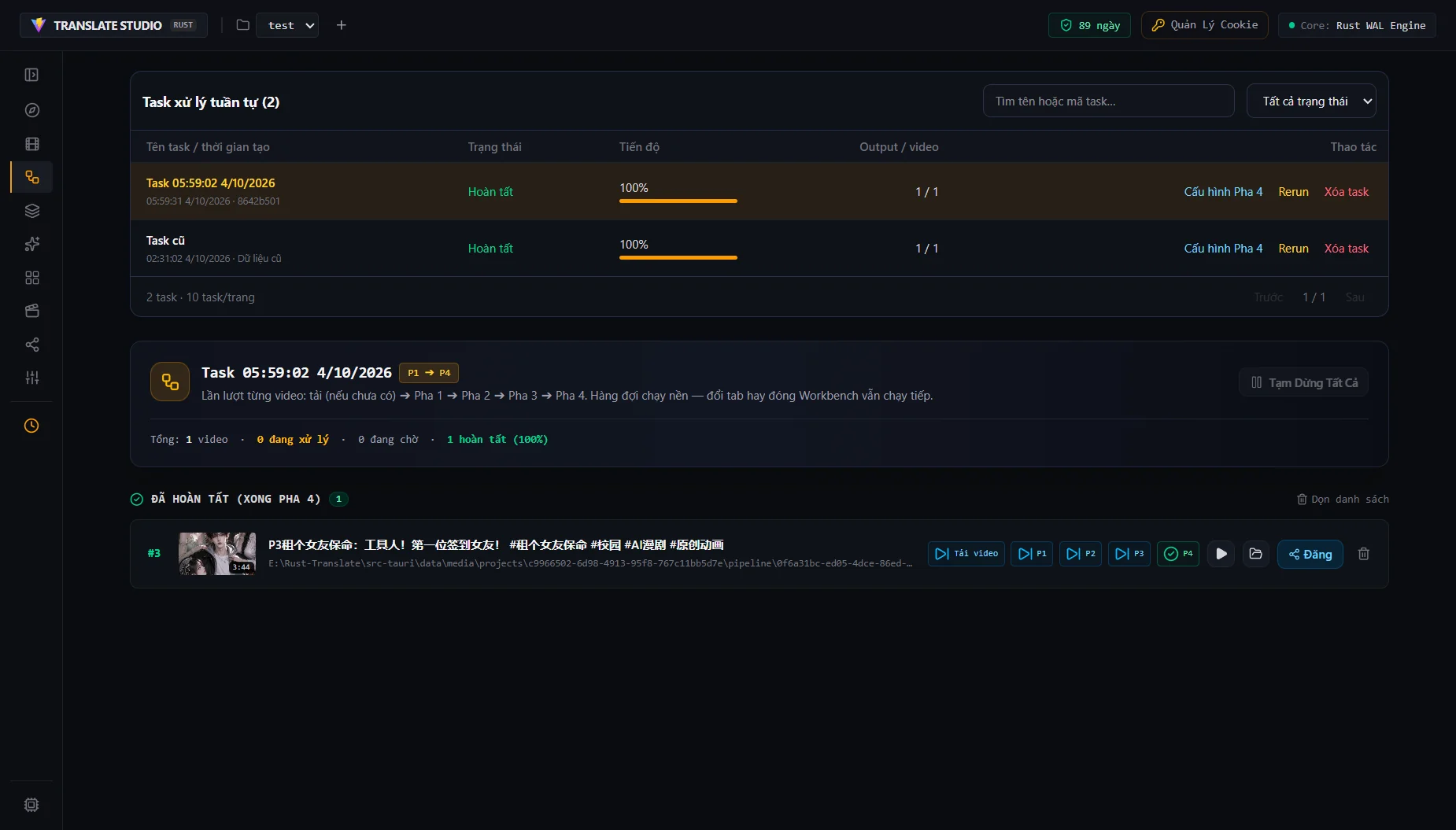
Opening each episode and repeating transcription, translation, dubbing and export takes time to manage. Select multiple videos, apply shared settings and queue them to run in sequence from source download to finished export. Track each video, pause and resume the queue, or rerun work when needed.
Video demo not available yet
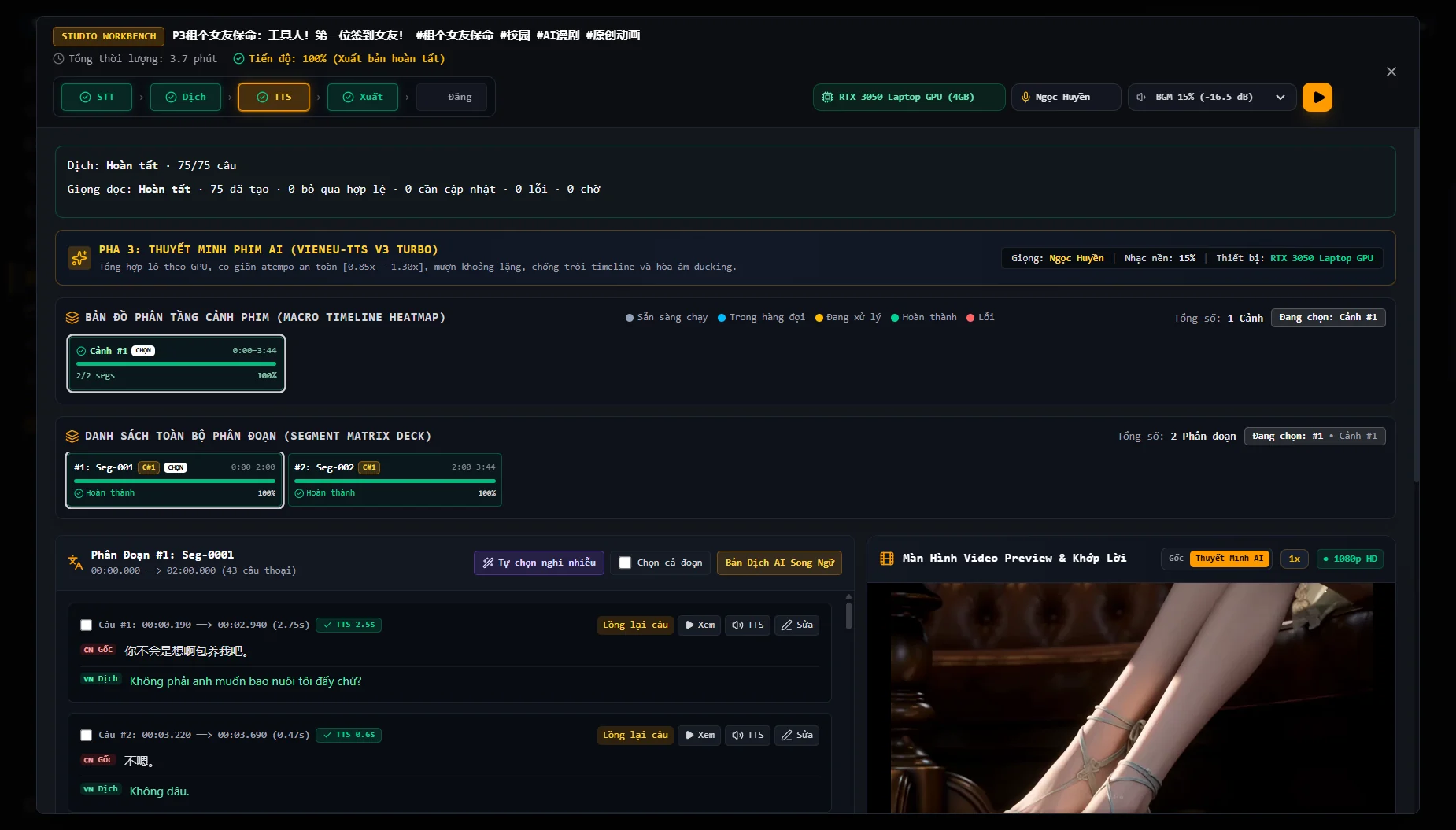
Character names, forms of address and recurring terms can become inconsistent across episodes. Transcribe dialogue, compare the original with the AI translation and edit individual lines alongside the video. Character profiles and a project dictionary help preserve context; choose an AI voice, listen to a preview and regenerate speech for a line you have changed.
Video demo not available yet
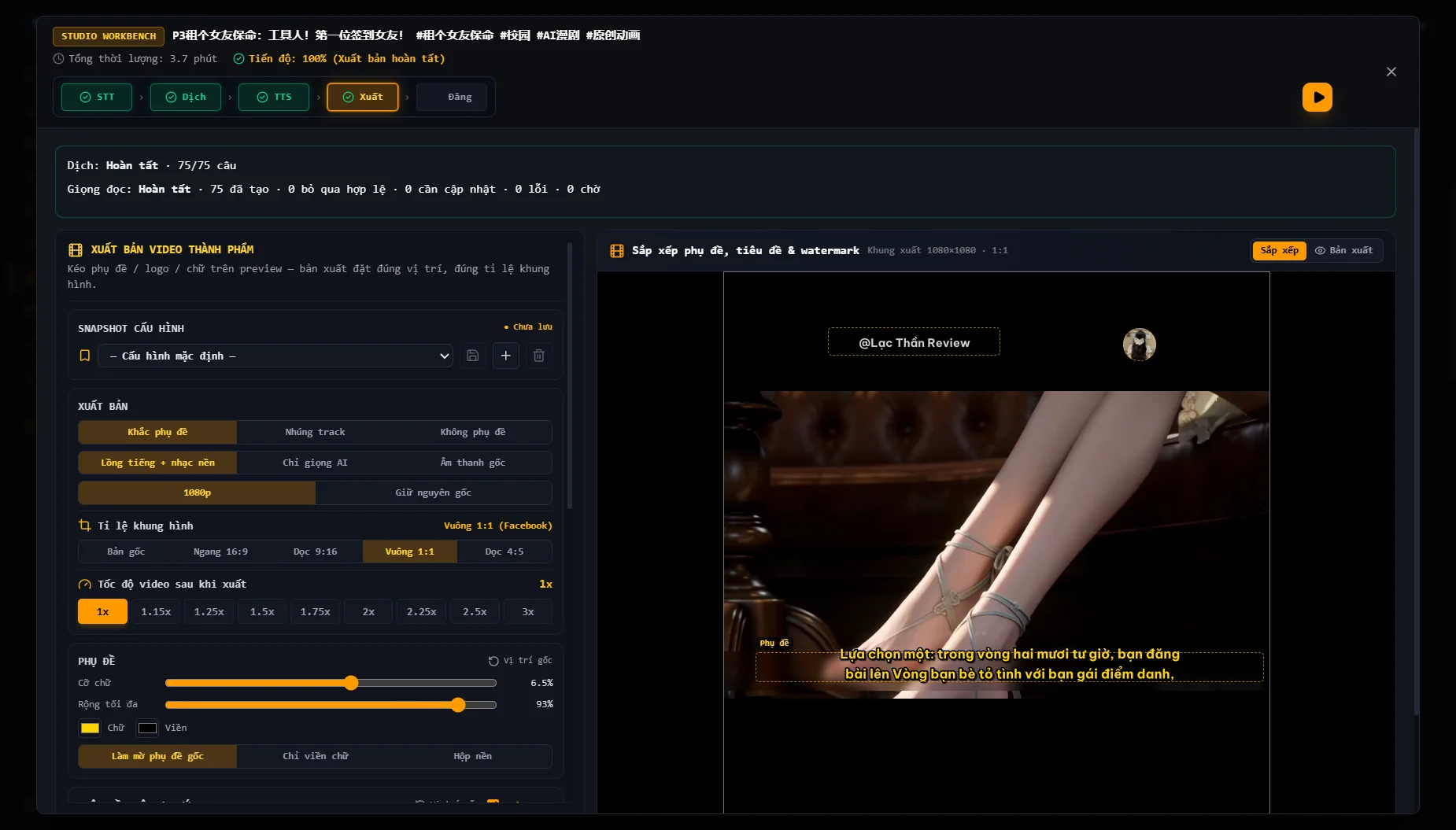
Different destinations need different video formats, and rebuilding subtitle and logo layouts for each episode makes consistency harder. Drag subtitles, titles, logos and watermarks onto the video preview; choose landscape, portrait or square framing, audio and export speed. Save the configuration to reuse on your next videos.
Video demo not available yet
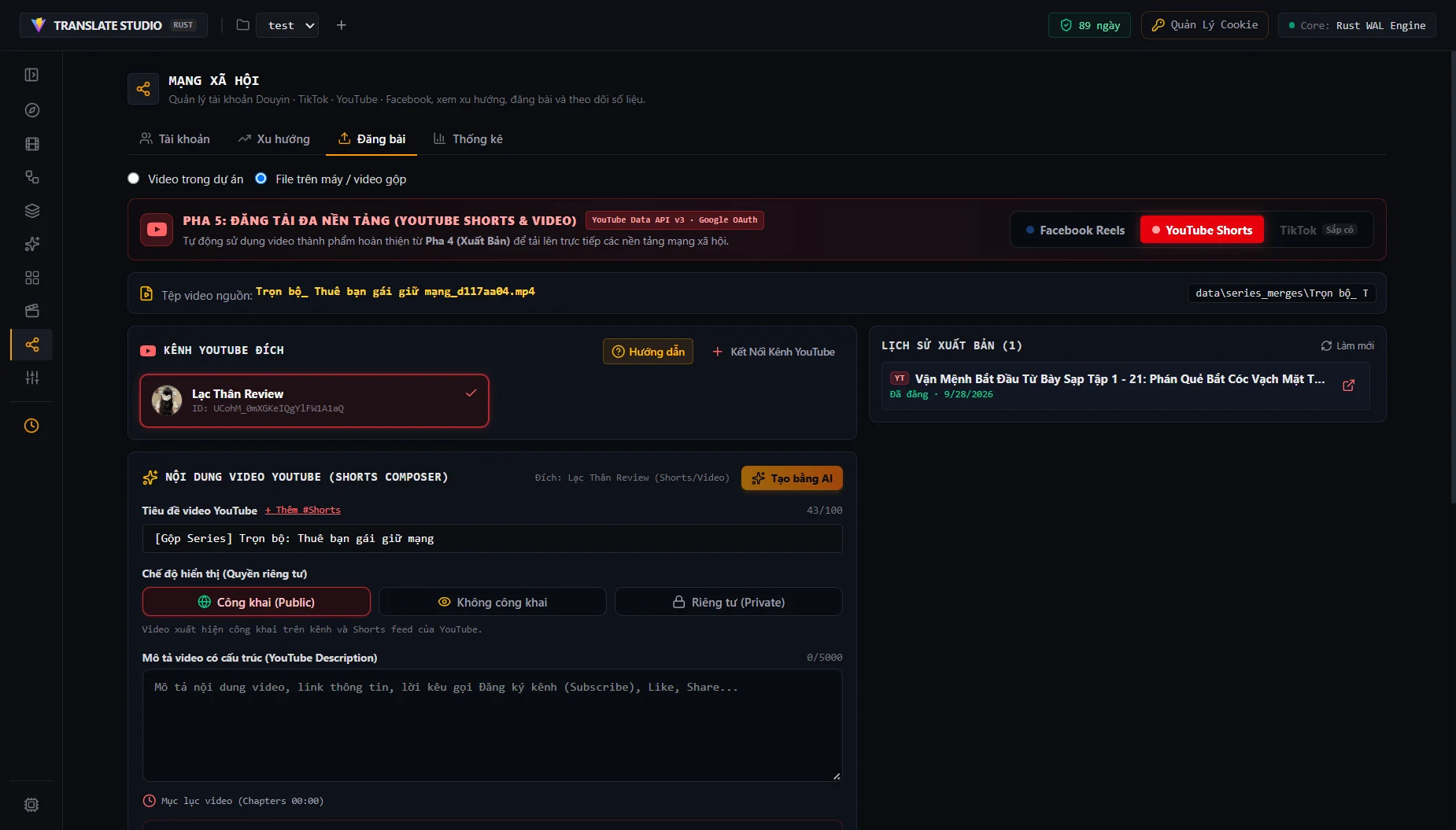
Managing several channels means checking the right account, preparing post content and keeping track of each upload. Select a YouTube channel or Facebook Page, use AI to help draft the title, description and hashtags, then add a cover and publishing settings for the platform. Upload from the app and review publishing status and history.
Video demo not available yet
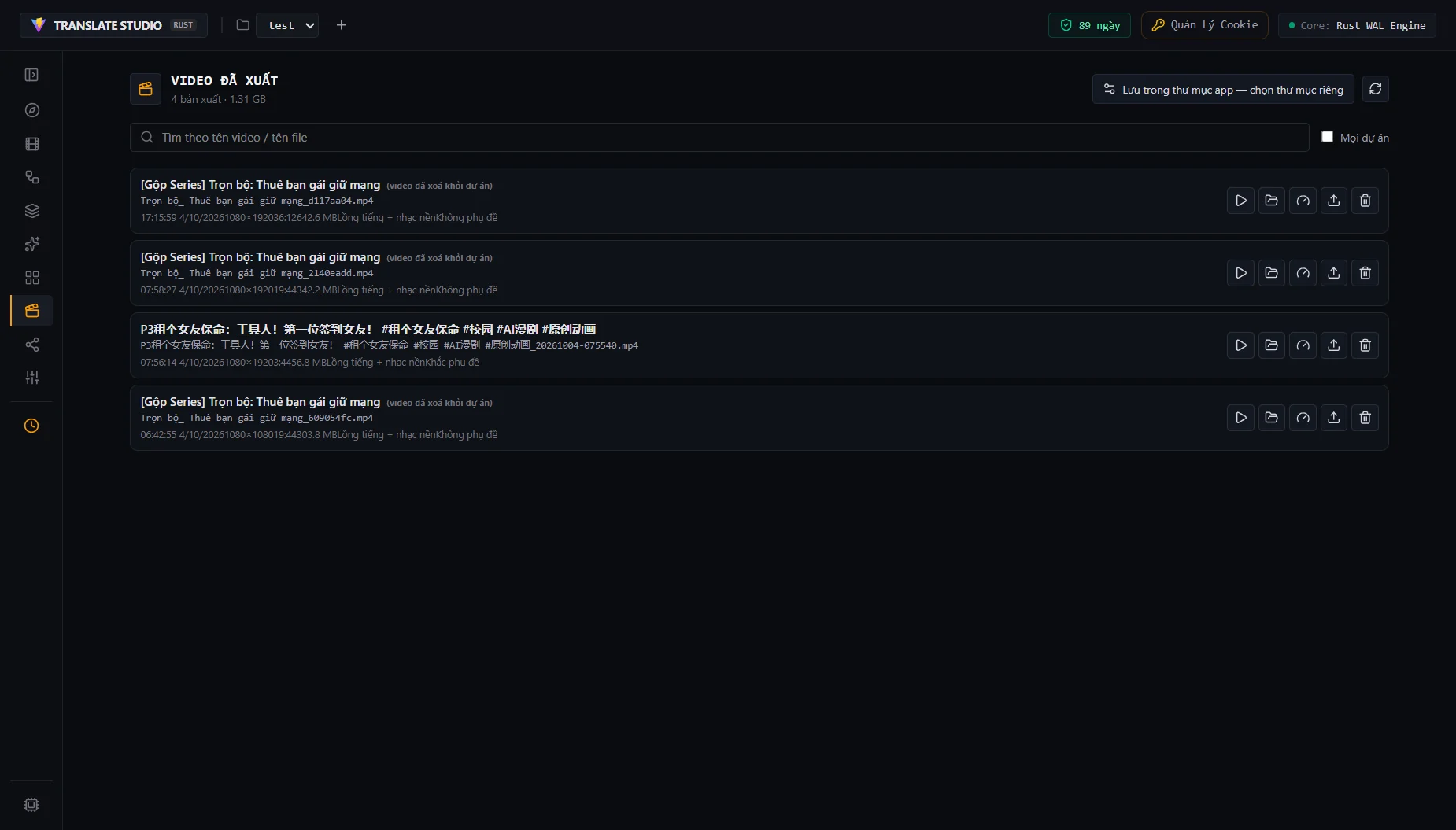
As episodes accumulate, exports scattered across folders make it harder to find the right video to review or publish. Keep exports and compilations in one library with search, playback and access to each file location. Combine series episodes into a longer video, adjust speed after export or send a finished video to social publishing.
Video demo not available yet
Videos and screenshots come directly from the desktop app. Video Sources has a recorded demo; the other modules currently show screenshots and will receive their own videos.
ABOUT THE ECOTOOLS ECOSYSTEM
ecotools is a website presenting an ecosystem of tools for creating, managing content and automating work. Each product addresses a particular set of needs and has its own introduction page.
Rust-Translate is one tool within the ecotools ecosystem. It is a Windows application for managing video sources, translating and dubbing with AI, batch processing and publishing to YouTube or Facebook.
Rust-Translate is the available product. Standalone AI and social media tool categories are future directions; no release dates have been announced.
Explore the product page and demos to see whether the features fit your work, then visit the Windows download page. License activation and AI and voice service configuration take place in the application.
START WITH RUST-TRANSLATE
Explore the ecotools application for video management, production and publishing. Choose the tools that fit your content and the way you work.
Explore Rust-Translate